How to Make Royalty-Free Music for YouTube Videos with AI
Stop worrying about copyright strikes on YouTube. Learn how to generate custom royalty-free background music for your videos using AI — free to start.
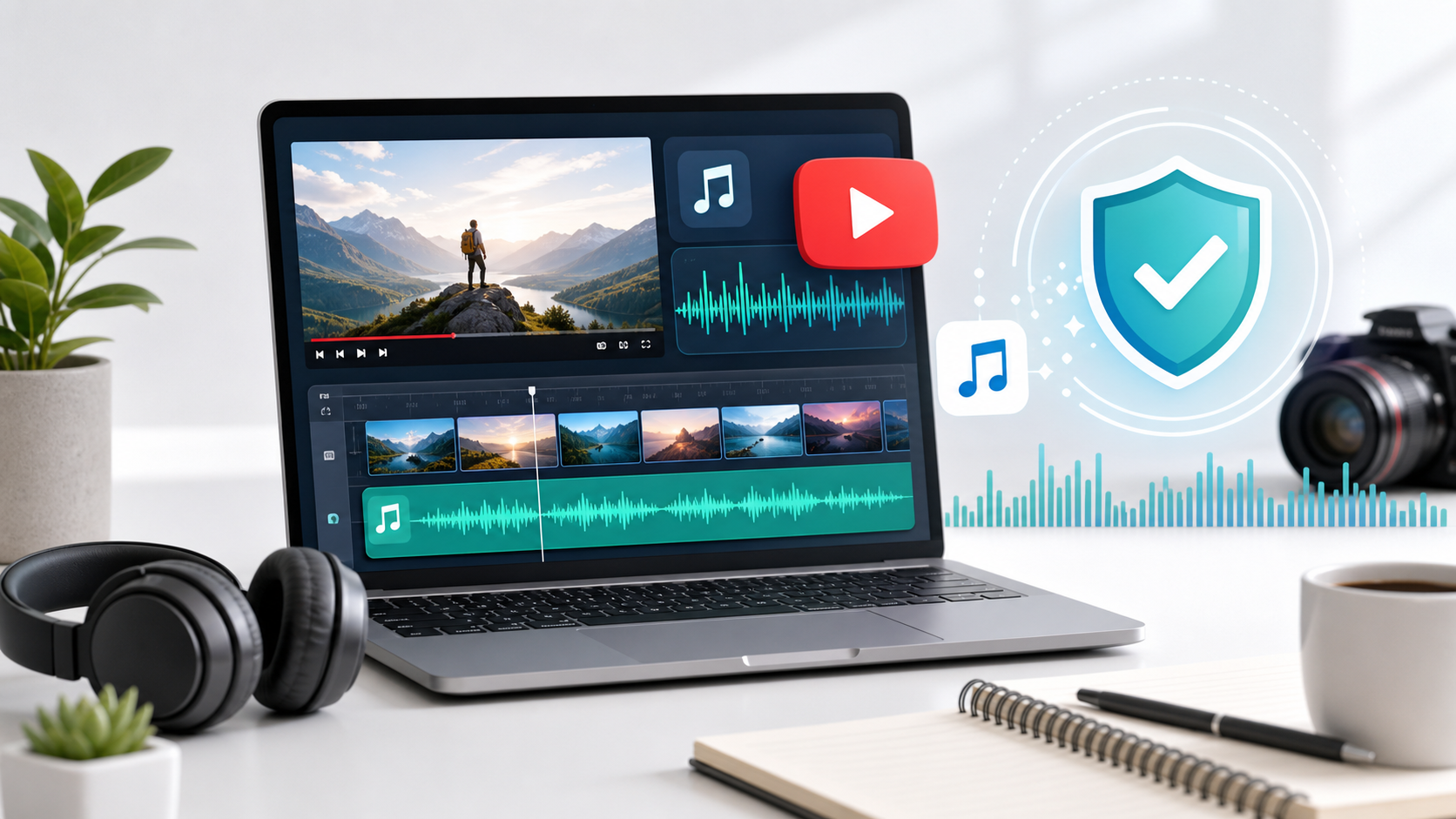
If you've been making YouTube videos for any amount of time, you've probably dealt with this: you upload a video, use a song you found somewhere, and within hours you get a copyright claim. Your video gets muted, demonetized, or in the worst case, you get a strike on your channel.
The standard advice is to use royalty-free music libraries. But let's be honest — the free ones all sound the same (you can probably hum that one ukulele track right now), and the paid ones like Epidemic Sound or Artlist cost $10-$15/month. For smaller creators, that adds up.
Here's what changed the game for me: generating my own music with AI. It takes about a minute per track, it's completely unique (no one else has the exact same music), and it's 100% royalty-free. No claims. No licenses to manage. No annual subscriptions eating into your YouTube revenue.
Let me show you how to do it.
Why YouTube Creators Need AI Music (The Copyright Problem)
Let's get clear on why this matters, because the consequences are real:
Copyright claims — Even "free" music on YouTube isn't always free. Many tracks in the YouTube Audio Library have restrictions. And if you use any popular song — even 10 seconds of it — Content ID will flag it within minutes. A claim means the original rights holder takes your ad revenue for that video. Sometimes all of it.
Copyright strikes — Three strikes and your channel is terminated. Gone. Some creators have lost channels with millions of subscribers over music disputes. It's not worth the risk.
The cost problem — Epidemic Sound, Artlist, Musicbed — these are good services, but they're subscription-based. If you stop paying, you technically need to remove the music from your old videos. For a channel that's not yet monetized, $150/year is hard to justify.
The "everyone sounds the same" problem — Free music libraries are used by millions of creators. Your viewers have heard that same royalty-free track on 50 other channels. Custom AI music gives you something nobody else has.
Using AutoMusic for YouTube Background Music
Here's how I approach it for different video scenarios:
Scenario 1: Vlog / Day-in-the-Life Background Music
You need something that sits quietly behind your voice. Not too loud, not too catchy — just pleasant ambiance.
Settings in AutoMusic:
- Input type: Pure music (no vocals — you don't want someone singing over your narration)
- Style:
cheerful lo-fi acoustic background music, light and airy, gentle guitar and soft piano - Genre: Acoustic or Lo-fi
- Mood: Happy or Relaxed
- Tempo: Medium or Slow
The key word in your style description is "background." It signals to the AI that this should be subtle, not the main event.
Scenario 2: Channel Intro / Outro Jingle
Your intro music is your brand. Viewers should hear those first 5 seconds and immediately know it's your channel.
Settings:
- Input type: Pure music
- Style:
energetic modern electronic intro jingle, punchy and memorable, builds quickly then resolves - Genre: Electronic or Pop
- Mood: Energetic
- Tempo: Fast
After generating, you'll get a full-length track. Use your video editor to trim just the opening 5-10 seconds that sounds most like an intro. Most generated tracks have a strong opening — that's usually your best clip.
Scenario 3: Tutorial / Educational Video
For tutorials, the music needs to stay out of the way. No sudden changes, no big drops, nothing that pulls attention from what you're explaining.
Settings:
- Input type: Pure music
- Style:
minimal calm ambient music for tutorial videos, piano and soft pads, very subtle and non-distracting - Genre: Ambient or Acoustic
- Mood: Calm
- Tempo: Slow
Pro tip: generate a longer track and loop it in your editor. Tutorial videos are often 10-20 minutes, and you don't need the music to be interesting — you need it to be invisible.
Scenario 4: Hype / Montage Sections
Some parts of your video need energy. Product reveals, achievement montages, before-and-after comparisons. This is where you let the music take over for 15-30 seconds.
Settings:
- Input type: Pure music (or with vocals if you want that epic feel)
- Style:
cinematic epic trailer music, big drums and synths, powerful build-up with dramatic drop - Genre: Electronic or Cinematic
- Mood: Energetic or Dark
- Tempo: Fast
Scenario 5: Emotional / Story Moments
When you're telling a personal story or covering something serious, the music needs to match.
Settings:
- Input type: Pure music
- Style:
emotional piano piece, minimalist and heartfelt, gentle strings in background, bittersweet - Genre: Acoustic or Classical
- Mood: Sad or Romantic
- Tempo: Slow
YouTube Copyright Myths (Don't Fall for These)
I've seen so many creators get burned by bad information. Let me clear up the biggest myths:
Myth: "If I credit the artist, it's not copyright infringement."
Wrong. Giving credit doesn't give you permission to use copyrighted music. A copyright claim doesn't care about your description box. You either have a license or you don't.
Myth: "Using less than 30 seconds is fair use."
Also wrong. There's no "30-second rule." Content ID can detect 3 seconds of a copyrighted song. Fair use is a legal defense, not a free pass — and it's evaluated case by case.
Myth: "AI-generated music has copyright issues too."
For AutoMusic specifically: no. The music generated on the platform is royalty-free. You're not infringing on anyone's copyright because the AI created something original that didn't exist before. You can monetize videos using this music without any issues.
Myth: "If I use a 'no copyright' track from YouTube, I'm safe."
Be very careful with this one. Many "no copyright music" channels upload tracks without actually having distribution rights. Or they change their licensing terms later. With AI-generated music, you eliminate this uncertainty entirely — you generated it, you own the usage rights.
Practical Workflow: Scoring a 10-Minute YouTube Video
Let me walk through how I'd actually score a typical YouTube video:
1. Map your video's emotional arc:
- 0:00-0:30 — Hook/intro (energetic)
- 0:30-3:00 — Context/background (calm, conversational)
- 3:00-7:00 — Main content (subtle background)
- 7:00-8:30 — Climax/reveal (building energy)
- 8:30-10:00 — Conclusion + CTA (warm, resolving)
2. Generate 2-3 tracks for different sections:
- Track A: Upbeat for intro and transitions
- Track B: Calm ambient for the main content sections
- Track C: Emotional or energetic for the climax
3. Arrange in your editor:
- Layer tracks under your voiceover
- Keep music at -15 to -20 dB below your voice
- Use crossfades between different tracks at section transitions
- Cut the music entirely during important spoken moments
4. Export and upload confidently:
- No need to add music credits (though you can if you want)
- No worrying about claims appearing days or weeks later
- Monetize immediately
Frequently Asked Questions
Will YouTube flag AI-generated music from AutoMusic?
No. Content ID works by matching audio against a database of registered copyrighted works. AI-generated music from AutoMusic isn't in any copyright database because it's original content that didn't exist before you created it.
Can I use this music commercially (monetized videos, brand deals)?
Yes. AutoMusic's output is royalty-free for all uses including commercial. Monetize away.
What if another creator generates the same-sounding track?
Every generation is unique. Even with identical inputs, the AI produces different outputs each time. But even in the extremely unlikely case someone created something similar, there's no copyright conflict — you both have royalty-free rights to your respective outputs.
Is the audio quality good enough for YouTube?
Yes. The output quality is suitable for YouTube's audio compression. It won't sound like a studio recording with a live orchestra, but for background music, intros, and montages, it's more than adequate.
Stop paying for music subscriptions. Stop risking copyright strikes. Generate exactly what your video needs in 60 seconds. Try the AI Song Maker and hear the difference custom music makes.
Curious about using AI music for podcasts too? Read our guide on AI music for podcast intros and background.
Internal links to include:
- Link to Article 1 (first song tutorial) when explaining "Pure music" mode
- Link to Article 2 (lyrics writing) where we mention vocal tracks
- Link to Article 4 (podcast music) at the end
Related articles
AI Song Makers Compared — Finding the Best Tool in 2026
Confused by all the AI music generators out there? We compare AutoMusic, Suno, Udio, and Boomy on quality, features, pricing, and copyright policies.

AI-Generated Music and Copyright in 2026 — What Creators Need to Know
Who owns AI-generated music in 2026? We break down the copyright landscape, major label lawsuits, Content ID realities, and why AutoMusic's royalty-free policy covers all users — including the free tier.
10 Ways to Make Your AI Songs Sound Less Like AI
AI music sounds too clinical? These 10 techniques cover everything from style prompting to AutoMusic's V1/V2 model strategy and stem separation — so your tracks feel like real productions.