How to Create Your First AI Song — A Step-by-Step Tutorial
Learn how to make your first AI-generated song in under 5 minutes. No music experience needed. This guide walks you through AutoMusic's song maker from start to finish.
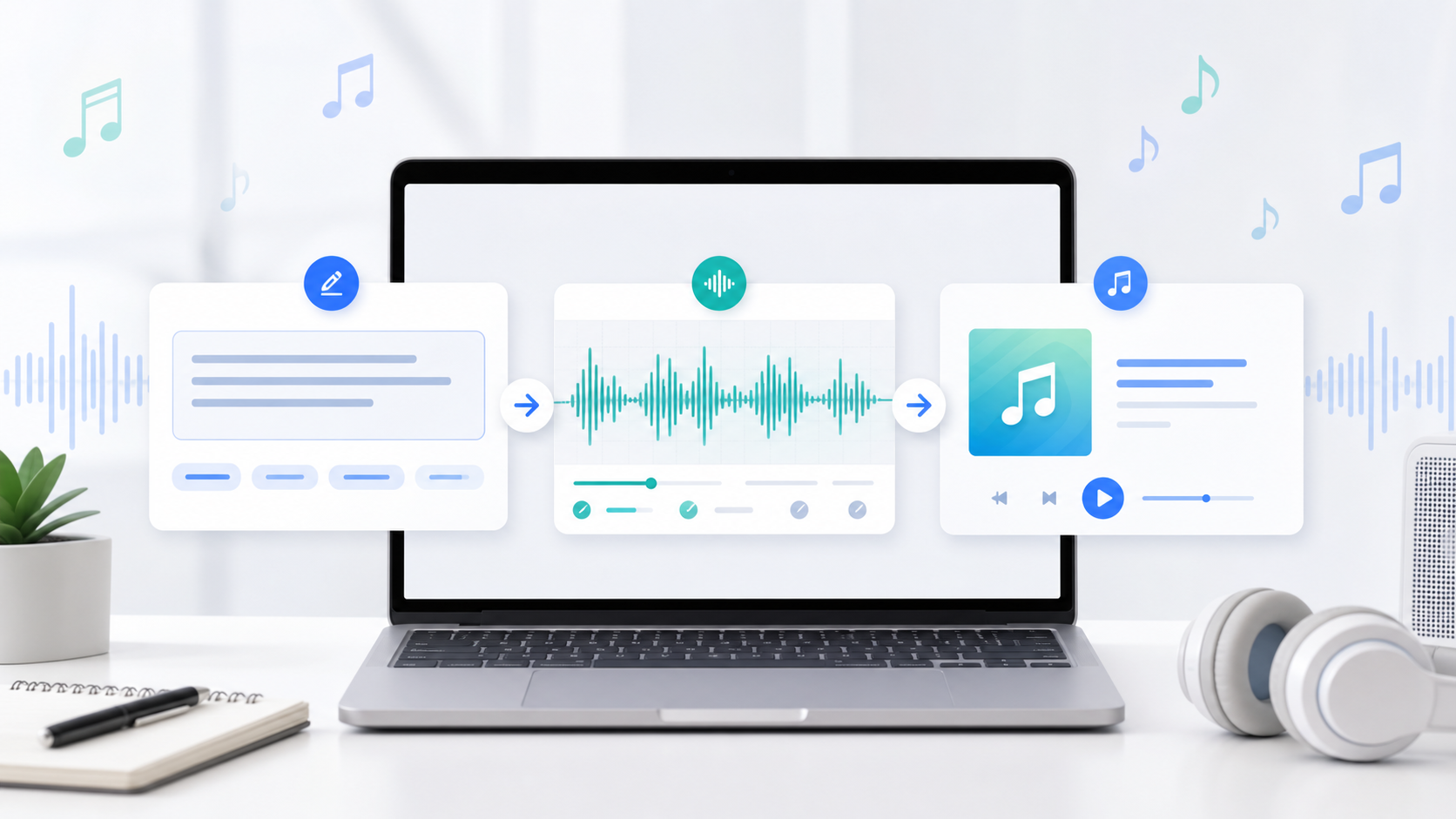
You don't need to play an instrument. You don't need to know music theory. You don't even need to be able to sing.
With AutoMusic's AI song maker, you can go from a blank page to a fully produced song — vocals, melody, beat, everything — in about 60 seconds. I'm not exaggerating. The AI handles the composition, arrangement, and production. Your job is just to tell it what you want.
This tutorial walks you through the entire process, from choosing your creation mode to downloading your finished track. By the end, you'll have made your first song. Let's get into it.
Understanding AutoMusic's Two Creation Modes
When you open AutoMusic, the first thing you'll notice is two tabs at the top of the song creation panel: Custom and Simple (V1.0).
Here's the difference:
Custom mode gives you full control. You pick the input type, write your lyrics (or let AI do it), set the genre, mood, voice type, and tempo. It's not complicated — but it does ask you to make a few choices.
Simple mode is for when you just want something fast. Type a short description of what you want, and the AI fills in the rest. Think of it like telling a friend "hey, make me something upbeat and fun" and letting them run with it.
My recommendation? If this is literally your first time, start with Simple mode to see what the AI can do. Then switch to Custom mode when you want more control over the output. That's where the real fun begins.
Making Your First Song: The Step-by-Step Walkthrough
Step 1: Choose Your Input Type
In Custom mode, you'll see three input options:
- Lyrics — You write the words, the AI turns them into a song. This is what most people use.
- Pure music — No vocals at all. Just instrumental. Great for background music, intros, or ambient tracks.
- AI lyrics — You give the AI a topic or mood, and it writes the lyrics for you. Then it sings them. Hands-free.
Not sure which to pick? Here's my quick rule: if you have words you want sung, go with "Lyrics." If you need background music for a video or podcast, go "Pure music." If you're feeling lazy or just want to experiment, "AI lyrics" is your friend.
Step 2: Enter Your Content
This depends on which input type you chose:
If you picked "Lyrics": Paste or type your lyrics into the text box. You've got up to 3,000 characters to work with. A few tips that make a real difference:
- Use structure tags like
[Verse],[Chorus], and[Bridge]to tell the AI where the energy should shift - Keep lines short — 8 to 12 words per line works best
- The chorus should be catchy and repetitive. That's what the AI locks onto for the hook.
If you picked "Pure music": Skip the lyrics box entirely. The style description (next step) becomes your main input.
If you picked "AI lyrics": Type a theme or topic. Something like "a love letter to someone far away" or "celebrating a promotion at work." The AI generates full lyrics based on your prompt.
Step 3: Name Your Song and Set the Style
Two fields here:
Name (up to 80 characters) — Give your song a title. This doesn't affect the music, it's just for your library.
Style (up to 180 characters) — This is where you describe the sound you want. Be specific. The more detail you give, the better the result.
Bad example: "pop song" Good example: "upbeat pop with acoustic guitar, soft female vocals, and a warm summer vibe"
See the difference? The second one gives the AI something to work with. Genre alone isn't enough — think about instruments, energy level, and atmosphere.
You can also use the quick-select tags below the style field:
- Genre: Pop, Rap, Acoustic, EDM, Jazz, R&B, Rock, Country, and more
- Moods: Happy, Sad, Romantic, Energetic, Calm, Dark
- Voices: Male, Female, or leave it for instrumental
- Tempos: Slow, Medium, Fast
Click any combination that matches your vision. These tags get added to your style description automatically.
Step 4: Hit Generate and Wait
Click the Generate button. Each generation costs 3 credits. The AI takes about 30-60 seconds to produce your song.
That's it. Seriously. When it's done, you'll see it appear in your "My Songs" section. Click to play, and you'll hear a full song — vocals (if you included lyrics), instruments, arrangement, the whole thing.
Not happy with the result? Generate again. The AI produces something different every time, even with identical inputs. I usually generate 2-3 versions and pick my favorite.
Tips to Get Better Results
After making dozens of songs on AutoMusic, here are the things that actually matter:
Your style description is everything. Don't waste those 180 characters. Instead of "rock," try "90s alternative rock with distorted guitars, raspy male vocals, and a driving drum beat." The AI can't read your mind — if you want something specific, spell it out.
Structure your lyrics. Adding [Verse 1], [Chorus], [Verse 2], [Bridge] markers makes a massive difference. Without them, the AI doesn't know where to build intensity and where to pull back. With them, you get a song that actually flows.
Short lines for choruses. The catchiest choruses in pop music are usually 4-6 short lines. AI is the same way. Give it a punchy, repetitive chorus and it'll deliver something that actually sticks in your head.
Experiment with Advanced Options. Once you're comfortable with the basics, explore what else you can tweak. Small changes to the settings can push the output in surprising directions.
What to Do With Your Finished Song
Once you've got a song you're happy with, you can:
- Download it to your device in audio format
- Use it in your content — YouTube videos, podcasts, Instagram reels, TikTok. Everything generated on AutoMusic is 100% royalty-free, meaning no copyright strikes, no claims, no worries.
- Share it via the Community Creations section where other AutoMusic users can listen
The royalty-free part is worth emphasizing. Unlike using copyrighted music from Spotify or YouTube, AI-generated songs from AutoMusic are yours to use commercially without any licensing headaches.
Frequently Asked Questions
Is there a copyright issue with AI-generated songs?
No. Songs created on AutoMusic are 100% royalty-free. You own the output and can use it for personal or commercial projects without worrying about copyright claims or DMCA strikes.
Can I use AutoMusic for free?
Yes. New users get trial credits to test the platform. Each song generation costs 3 credits. You can start creating immediately without a paid plan.
How long can an AI-generated song be?
AutoMusic supports songs up to 4 minutes long — plenty for a full track with verses, choruses, and a bridge.
Ready to make your first song? It takes less time than reading this article did. Head to the AI Song Maker and try it out — your first track is waiting.
Related articles
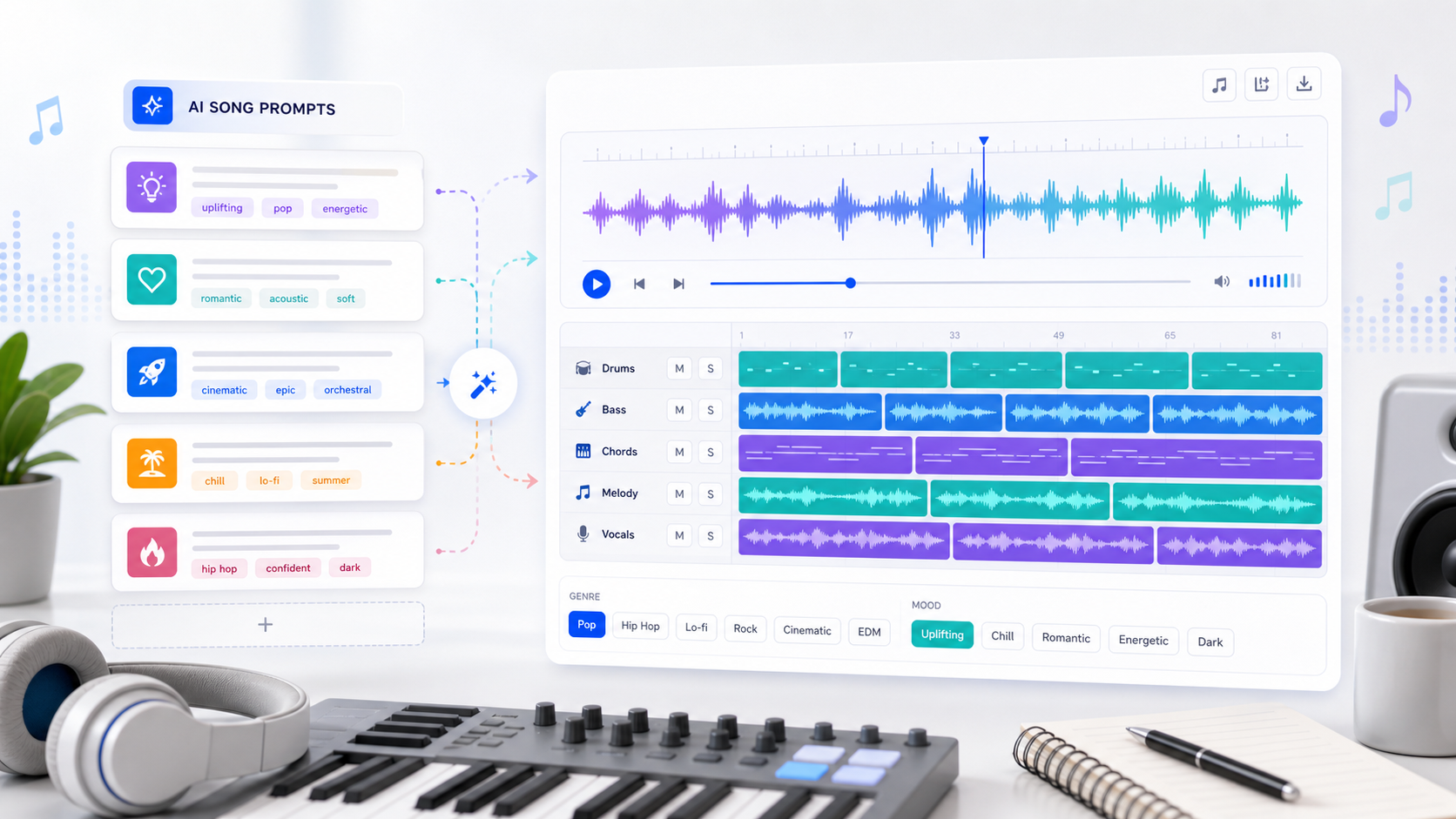
AI Song Prompts That Work — 25 Examples for Better Results
Learn how to write better AI song prompts with 25 practical examples for pop, rap, acoustic, EDM, podcast intros, YouTube background music, and more.

How to Make Royalty-Free Music for YouTube Videos with AI
Stop worrying about copyright strikes on YouTube. Learn how to generate custom royalty-free background music for your videos using AI — free to start.
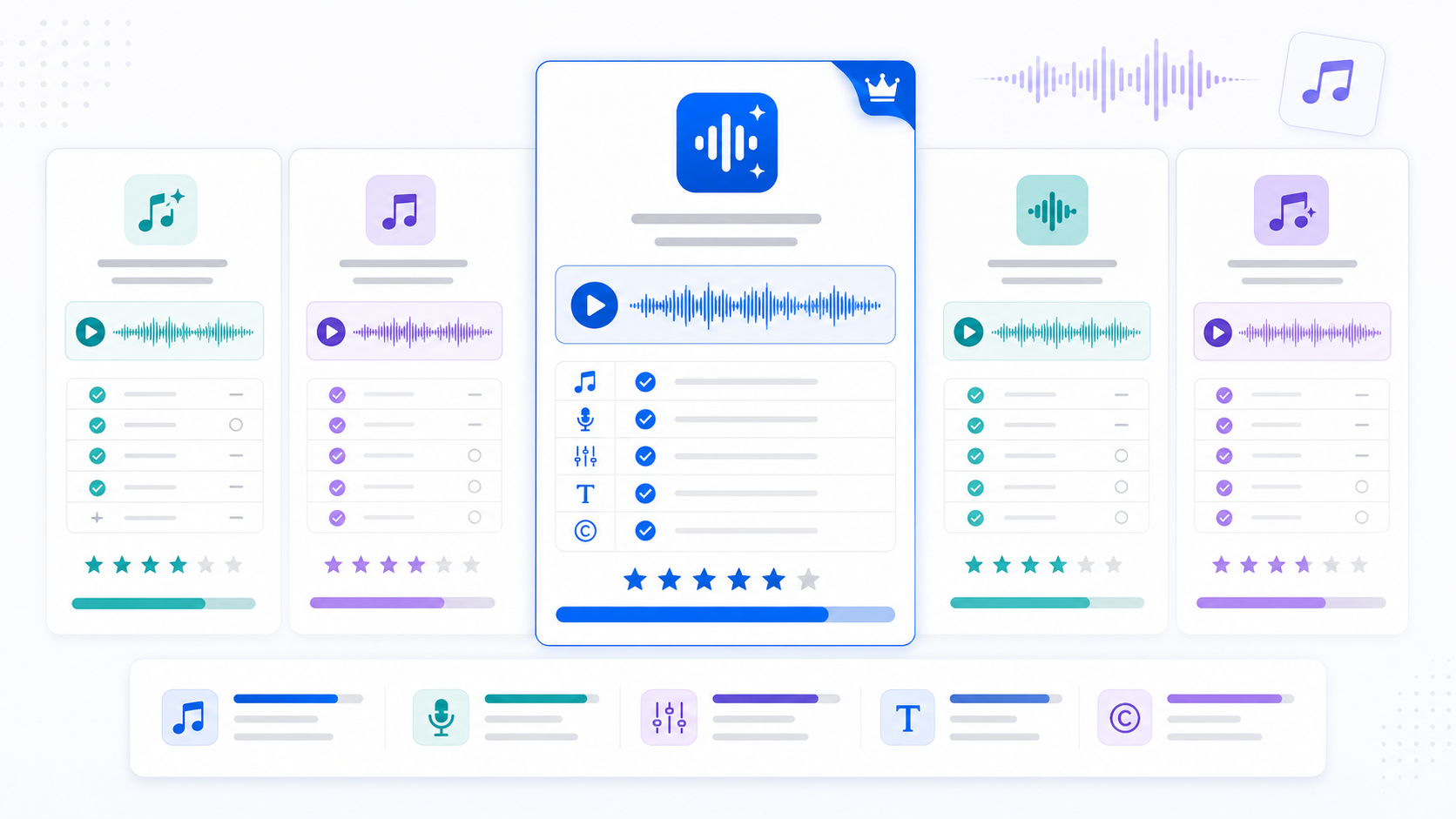
AI Song Makers Compared — Finding the Best Tool in 2026
Confused by all the AI music generators out there? We compare AutoMusic, Suno, Udio, and Boomy on quality, features, pricing, and copyright policies.